
Pingvin Share: Self-Hosted File Sharing Like WeTransfer
Sending a large file to someone should be simple. Instead, you end up navigating a maze of options -- email attachments cut off at 25 MB, Google Drive requires the recipient to have a Google account, WeTransfer works but your files sit on someone else's server, and Dropbox sharing links expire or require sign-up. Every commercial file sharing service either limits file sizes, requires accounts on both ends, or stores your data on infrastructure you don't control.
Photo by Seyed Arshia Nezamodiny on Unsplash
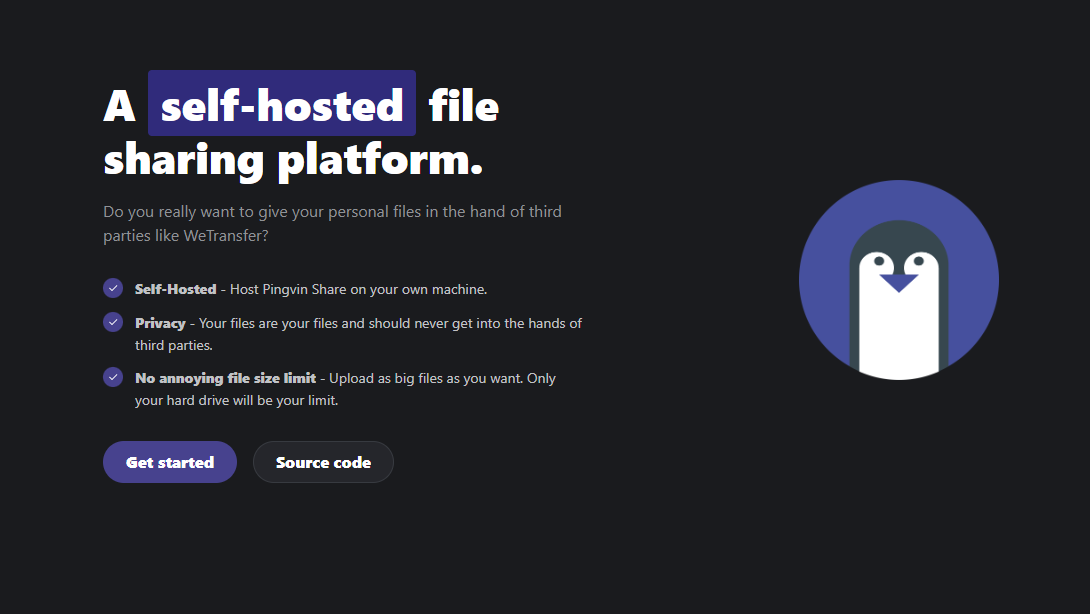
Pingvin Share is a self-hosted file sharing platform that works like WeTransfer but runs on your own server. Upload files, get a shareable link, send it to anyone. No account required for recipients. Files can be set to expire after a certain time or number of downloads. It's simple, fast, and your data never leaves your infrastructure.

Why Pingvin Share
The self-hosted file sharing space includes several options -- Zipline, Send (Firefox Send forks), FileBrowser, ProjectSend. Pingvin Share stands out for its focus on simplicity and the "send files to someone" use case:
- No recipient account needed -- Anyone with the link can download. No sign-up, no login, no friction.
- Expiration controls -- Set shares to expire after a specific time (hours, days, weeks) or after a set number of downloads.
- Password protection -- Optionally password-protect shares for sensitive files.
- Reverse sharing -- Generate a link that lets someone upload files to you, rather than you sharing files with them. Great for receiving documents from clients or collaborators.
- Email integration -- Send share links directly via email from the Pingvin Share interface.
- Visitor limits -- Restrict how many times a share link can be accessed.
- Clean UI -- Modern, intuitive interface that non-technical users can navigate without confusion.
- Multi-user support -- Multiple users with separate accounts, quotas, and sharing histories.
- ClamAV integration -- Optional virus scanning for uploaded files.
Pingvin Share vs. Other File Sharing Tools
| Feature | Pingvin Share | Zipline | Send (fork) | ProjectSend |
|---|---|---|---|---|
| Primary use case | File sharing | Screenshots + files | Encrypted file sharing | Client file sharing |
| No account for recipients | Yes | Yes | Yes | Optional |
| Expiration controls | Time + download count | Time | Time + download count | Time |
| Password protection | Yes | Yes | Yes | Yes |
| Reverse sharing | Yes | No | No | Yes |
| Max file size | Server-limited | Server-limited | Varies (2.5 GB default) | Server-limited |
| Virus scanning | ClamAV integration | No | No | No |
| Email notifications | Yes | No | No | Yes |
| Tech stack | Next.js + NestJS | Next.js | Node.js | PHP |
Choose Pingvin Share for general-purpose file sharing with expiration and reverse sharing. Choose Zipline if you also need screenshot hosting and URL shortening. Choose Send if end-to-end encryption is your top priority. Choose ProjectSend for client-facing document portals.
Docker Compose Setup
Pingvin Share is straightforward to deploy:
# docker-compose.yml
services:
  pingvin-share:
    image: stonith404/pingvin-share
    container_name: pingvin-share
    ports:
      - "3000:3000"
    volumes:
      - pingvin_data:/opt/app/backend/data
    environment:
      - APP_URL=http://localhost:3000
      # SMTP settings for email notifications (optional)
      # - SMTP_HOST=smtp.example.com
      # - SMTP_PORT=587
      # - [email protected]
      # - SMTP_PASSWORD=your-password
      # - [email protected]
    restart: unless-stopped

volumes:
  pingvin_data:
docker compose up -d
Navigate to http://your-server:3000 and create your admin account. The first registered user automatically becomes the administrator.
With ClamAV Virus Scanning
If you want uploaded files scanned for malware:
# docker-compose.yml
services:
  pingvin-share:
    image: stonith404/pingvin-share
    container_name: pingvin-share
    ports:
      - "3000:3000"
    volumes:
      - pingvin_data:/opt/app/backend/data
    environment:
      - APP_URL=http://localhost:3000
      - CLAMAV_HOST=clamav
      - CLAMAV_PORT=3310
    depends_on:
      - clamav
    restart: unless-stopped

  clamav:
    image: clamav/clamav:latest
    container_name: pingvin-clamav
    volumes:
      - clamav_data:/var/lib/clamav
    restart: unless-stopped

volumes:
  pingvin_data:
  clamav_data:
Note that ClamAV uses significant memory (1-2 GB RAM) for its virus definition database. Only enable it if you have the resources and the use case warrants it (e.g., accepting uploads from untrusted sources).
Creating and Managing Shares
Basic File Sharing
- Log in to Pingvin Share
- Click "Create Share" or drag and drop files onto the page
- Select one or multiple files (or entire folders)
- Configure share settings:
- Expiration: When the share link should stop working
- Max views: How many times the link can be accessed (0 = unlimited)
- Password: Optional password protection
- Description: A note about what you're sharing
- Click "Share" to generate the link
- Copy the link or send it via the built-in email function
Reverse Sharing
Reverse shares solve the "how do I get files FROM someone" problem. Instead of asking someone to upload files to a cloud service and send you a link, you generate a link that lets them upload directly to your Pingvin Share instance:
- Go to "Reverse Shares" in the sidebar
- Click "Create Reverse Share"
- Set the maximum file size and number of files allowed
- Set an expiration for the upload window
- Send the generated link to the person you need files from
When they visit the link, they see a simple upload form -- no account needed. The uploaded files appear in your Pingvin Share account. This is particularly useful for:
- Receiving documents from clients (contracts, invoices, reference materials)
- Collecting photos from events (share a link with attendees)
- Getting large files from non-technical users who struggle with other methods
Want more storage guides? Get guides like this in your inbox — Self-Hosted Weekly delivers one free deep-dive every week.
Administration
User Management
As an admin, you can:
- Create additional user accounts
- Set per-user storage quotas
- Enable or disable user registration (important for public-facing instances)
- View sharing activity across all users
Share Configuration Defaults
Configure default share settings in the admin panel:
- Default expiration: How long shares last by default (users can override)
- Max file size: Global maximum file size for uploads
- Max share size: Total size limit for a single share
- Allow registration: Whether new users can sign up
- Allow unauthenticated shares: Whether logged-out visitors can create shares
- Share ID length: Length of the random string in share URLs (longer = harder to guess)
Storage Management
Pingvin Share stores files in the data volume you mounted. Monitor disk usage through the admin panel or by checking the volume directly:
# Check storage usage
docker exec pingvin-share du -sh /opt/app/backend/data/
Expired shares are automatically cleaned up, but you can also manually delete shares that are no longer needed from the admin panel.
SMTP Configuration for Email Sharing
Setting up email lets users send share links directly from the Pingvin Share interface:
environment:
  - SMTP_HOST=smtp.fastmail.com
  - SMTP_PORT=465
  - [email protected]
  - SMTP_PASSWORD=your-app-password
  - [email protected]
Once configured, users can enter recipient email addresses when creating a share, and Pingvin Share sends a notification email with the download link. This is more convenient than manually copying and pasting links, especially when sharing with multiple people.
Reverse Proxy Configuration
For production use, you'll want Pingvin Share behind a reverse proxy with TLS.
Caddy
share.yourdomain.com {
    reverse_proxy pingvin-share:3000
}
Nginx
server {
    listen 443 ssl;
    server_name share.yourdomain.com;

    ssl_certificate /path/to/cert.pem;
    ssl_certificate_key /path/to/key.pem;

    client_max_body_size 10G;  # Adjust based on your max file size

    location / {
        proxy_pass http://localhost:3000;
        proxy_http_version 1.1;
        proxy_set_header Upgrade $http_upgrade;
        proxy_set_header Connection "upgrade";
        proxy_set_header Host $host;
        proxy_set_header X-Real-IP $remote_addr;
        proxy_set_header X-Forwarded-For $proxy_add_x_forwarded_for;
        proxy_set_header X-Forwarded-Proto $scheme;
    }
}
The client_max_body_size directive is critical -- Nginx's default of 1 MB will prevent most file uploads. Set it to match or exceed your maximum file size.
Traefik
services:
  pingvin-share:
    image: stonith404/pingvin-share
    labels:
      - "traefik.enable=true"
      - "traefik.http.routers.pingvin.rule=Host(`share.yourdomain.com`)"
      - "traefik.http.routers.pingvin.entrypoints=websecure"
      - "traefik.http.routers.pingvin.tls.certresolver=letsencrypt"
      - "traefik.http.services.pingvin.loadbalancer.server.port=3000"
    volumes:
      - pingvin_data:/opt/app/backend/data
    restart: unless-stopped
Backup Strategy
Pingvin Share stores all data in the mounted volume, including uploaded files and the database:
# Stop the container for consistent backup
docker compose stop pingvin-share

# Backup the data volume
docker run --rm \
  -v pingvin_data:/data \
  -v $(pwd)/backups:/backup \
  alpine tar czf /backup/pingvin-$(date +%Y%m%d).tar.gz -C /data .

# Restart
docker compose start pingvin-share
For large instances, consider backing up only the database (SQLite file in the data directory) regularly and doing full backups (including uploaded files) less frequently.
Security Hardening
Disable Public Registration
Unless you specifically want to allow anyone to create an account, disable registration after setting up your user accounts:
In the admin panel: Settings > General > Allow Registration > Off
Rate Limiting
If Pingvin Share is exposed to the internet, add rate limiting at the reverse proxy level to prevent abuse:
# Nginx rate limiting example
limit_req_zone $binary_remote_addr zone=pingvin:10m rate=10r/m;

location /api/shares {
    limit_req zone=pingvin burst=5;
    proxy_pass http://localhost:3000;
}
Monitoring Uploads
For public-facing instances, enable ClamAV scanning and regularly monitor what's being uploaded. Self-hosted file sharing services can be abused for malware distribution if not properly secured.
Use Cases
Small Business File Transfer
Instead of paying for WeTransfer Pro or dealing with file size limits on email, set up Pingvin Share on your business server. Send clients a link to download deliverables, or use reverse sharing to receive assets from them.
Family Photo Sharing
After a family event, create a share with all the photos and send the link to family members. Or create a reverse share and let everyone upload their photos to one place.
Development Team
Share build artifacts, log files, or database dumps with team members. The expiration feature ensures sensitive files don't linger indefinitely.
Freelancers and Agencies
Deliver final files to clients via branded share links. The clean interface is professional enough for client-facing use.
Who Should Use Pingvin Share
Pingvin Share is ideal if you:
- Regularly need to send files to people who don't have accounts on your systems
- Want control over where your shared files are stored
- Need expiration and access controls on shared files
- Want to receive files from others without requiring them to sign up for anything
- Currently use WeTransfer, Google Drive sharing, or email attachments and want a self-hosted alternative
The setup takes under five minutes, the interface is clean enough for non-technical recipients, and the reverse sharing feature solves the "how do I get files from someone" problem that most file sharing tools ignore. If you've ever sent someone a "please upload your files to this Google Drive folder" link and watched them struggle, Pingvin Share is worth trying.