
Hoarder: Self-Hosted AI-Powered Bookmark and Read-Later App
If you've ever looked at your browser bookmarks and felt a pang of guilt at the hundreds of unsorted links sitting in folders with names like "Read Later" and "Misc," you're not alone. The bookmark problem is universal: saving links is easy, organizing them is tedious, and actually finding something you saved six months ago is nearly impossible. Traditional bookmark managers ask you to manually tag and categorize everything, which means you either spend more time organizing than reading, or you give up and dump everything into one folder.
Photo by Erik Mclean on Unsplash
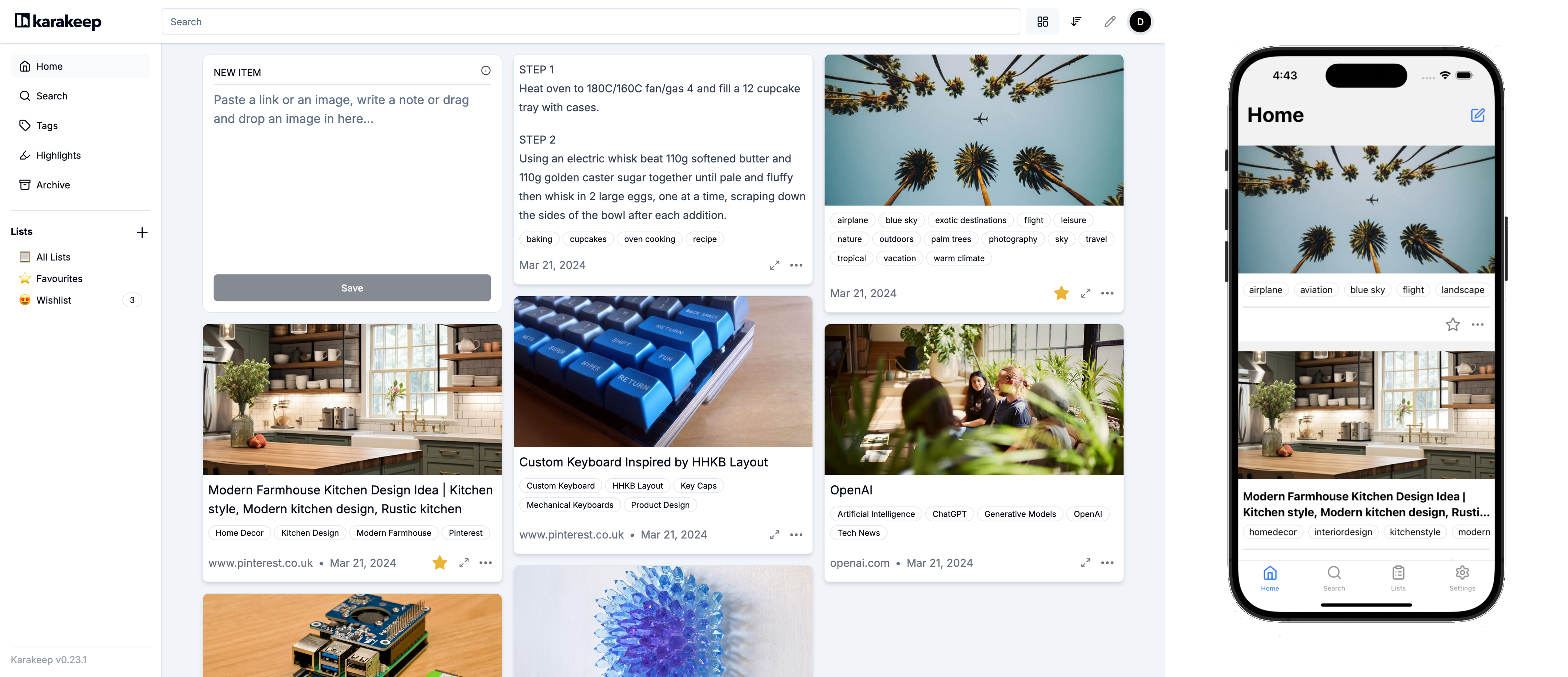
Hoarder (recently rebranded as Karakeep) takes a different approach. It uses AI to automatically analyze, tag, and categorize your bookmarks. Save a link, and Hoarder reads the page content, generates relevant tags, and makes everything searchable by full text. No manual organization required. It handles bookmarks, notes, images, and PDFs -- essentially anything you want to save for later.

Why Hoarder Over Other Bookmark Managers
The self-hosted bookmark space has several strong options -- Linkwarden, Linkding, Wallabag, Shiori. Hoarder differentiates itself in a few key ways:
- AI-powered auto-tagging -- This is the killer feature. Hoarder uses local or cloud AI models (OpenAI, Ollama, or any OpenAI-compatible API) to automatically generate relevant tags for every bookmark. Save an article about Kubernetes networking, and Hoarder tags it with "kubernetes," "networking," "containers," "devops" without you lifting a finger.
- Multi-content types -- Bookmarks, text notes, images, and PDFs all live in one place. It's not just a link manager; it's a personal knowledge store.
- Full-text search -- Search across the actual content of saved pages, not just titles and URLs.
- Browser extensions and mobile apps -- Chrome, Firefox, and Safari extensions plus iOS and Android apps for saving on the go.
- Clean, modern UI -- Built with Next.js, the interface feels like a modern web app rather than a utilitarian tool.
- Automatic archiving -- Pages are archived so content survives even if the original goes down.
- RSS feeds -- Subscribe to RSS feeds and have articles automatically saved.
- Lists -- Organize bookmarks into custom lists for projects, research topics, or reading queues.
Hoarder vs. Linkwarden vs. Linkding
| Feature | Hoarder | Linkwarden | Linkding |
|---|---|---|---|
| AI auto-tagging | Yes (OpenAI/Ollama) | No | No |
| Content types | Links, notes, images, PDFs | Links only | Links only |
| Full-text search | Yes | Yes (archived content) | Titles + descriptions |
| Page archiving | Automatic | Automatic | No |
| Browser extension | Chrome, Firefox, Safari | Chrome, Firefox | Chrome, Firefox |
| Mobile app | iOS + Android | PWA | PWA |
| Resource usage | Moderate (~400 MB) | Moderate (~300 MB) | Minimal (~50 MB) |
| RSS support | Yes | No | No |
| Tech stack | Next.js + Drizzle | Next.js + Prisma | Python + SQLite |
Choose Hoarder when you want AI to handle organization and you save more than just links. Choose Linkwarden when you want hierarchical collections and collaborative features. Choose Linkding when you want the lightest possible setup and tags are sufficient.
Docker Compose Setup
Hoarder requires three services: the web application, a Meilisearch instance for full-text search, and a Chrome browser for page archiving.
# docker-compose.yml
services:
  hoarder:
    image: ghcr.io/hoarder-app/hoarder:latest
    container_name: hoarder
    ports:
      - "3000:3000"
    volumes:
      - hoarder_data:/data
    environment:
      - MEILI_ADDR=http://meilisearch:7700
      - BROWSER_WEB_URL=http://chrome:9222
      - DATA_DIR=/data
      - NEXTAUTH_SECRET=CHANGE_ME_TO_RANDOM_SECRET_32_CHARS
      - NEXTAUTH_URL=http://localhost:3000
      # Optional: Enable AI auto-tagging with OpenAI
      # - OPENAI_API_KEY=sk-your-key-here
      # Optional: Use local Ollama instead
      # - OLLAMA_BASE_URL=http://host.docker.internal:11434
      # - INFERENCE_TEXT_MODEL=llama3.2
      # - INFERENCE_IMAGE_MODEL=llava
    depends_on:
      - meilisearch
      - chrome
    restart: unless-stopped

  meilisearch:
    image: getmeili/meilisearch:v1.11
    container_name: hoarder-meilisearch
    volumes:
      - meilisearch_data:/meili_data
    environment:
      - MEILI_NO_ANALYTICS=true
    restart: unless-stopped

  chrome:
    image: gcr.io/zenika-hub/alpine-chrome:124
    container_name: hoarder-chrome
    command:
      - --no-sandbox
      - --disable-gpu
      - --disable-dev-shm-usage
      - --remote-debugging-address=0.0.0.0
      - --remote-debugging-port=9222
      - --hide-scrollbars
    restart: unless-stopped

volumes:
  hoarder_data:
  meilisearch_data:
Start the stack:
docker compose up -d
Navigate to http://your-server:3000 and create your first account. The first user registered becomes the admin.
Configuring AI Auto-Tagging
The AI tagging is what makes Hoarder special. You have three options:
Option 1: OpenAI API
The easiest path. Add your OpenAI API key to the environment:
environment:
  - OPENAI_API_KEY=sk-your-openai-key
  - INFERENCE_TEXT_MODEL=gpt-4o-mini
  - INFERENCE_IMAGE_MODEL=gpt-4o-mini
Cost is minimal -- each bookmark costs a fraction of a cent to analyze. At typical usage of 20-30 bookmarks per day, expect around $1-2 per month.
Option 2: Local Ollama
If you want to keep everything self-hosted and avoid API costs, run Ollama on the same machine or another server on your network:
environment:
  - OLLAMA_BASE_URL=http://host.docker.internal:11434
  - INFERENCE_TEXT_MODEL=llama3.2
  - INFERENCE_IMAGE_MODEL=llava
For best results with Ollama, use a model with at least 7B parameters. llama3.2 works well for text analysis, and llava handles image recognition. You'll need a machine with at least 8 GB of RAM (16 GB recommended) to run these models locally.
Option 3: Any OpenAI-Compatible API
Hoarder works with any API that follows the OpenAI format -- Anthropic (via adapters), Together.ai, Groq, local vLLM, etc. Set the OPENAI_BASE_URL environment variable to point to your preferred provider:
environment:
  - OPENAI_BASE_URL=https://api.together.xyz/v1
  - OPENAI_API_KEY=your-together-api-key
  - INFERENCE_TEXT_MODEL=meta-llama/Llama-3-70b-chat-hf
Want more productivity guides? Get guides like this in your inbox — Self-Hosted Weekly delivers one free deep-dive every week.
Setting Up Browser Extensions
Hoarder's browser extensions make saving bookmarks effortless. Install from the Chrome Web Store or Firefox Add-ons, then configure:
- Open the extension settings
- Enter your Hoarder server URL (e.g.,
https://hoarder.yourdomain.com) - Generate an API key from Settings > API Keys in the Hoarder web UI
- Paste the API key into the extension
Once configured, you can save any page with a single click. The extension also supports:
- Quick notes -- Add a note alongside the bookmark
- Keyboard shortcut -- Default is
Ctrl+D(customizable) - Right-click context menu -- Save links and images from context menus
- Auto-tagging -- Tags are generated as soon as the bookmark is saved
Mobile Apps
Hoarder has native mobile apps for both iOS and Android, available in their respective app stores. The mobile apps support:
- Saving links from the share sheet (any app that supports sharing can send links to Hoarder)
- Taking notes directly in the app
- Browsing and searching your bookmark collection
- Viewing archived page content offline
- Managing tags and lists
The share sheet integration is particularly useful -- see an interesting article in your RSS reader, Twitter, or a chat app? Tap share, select Hoarder, and it's saved and auto-tagged within seconds.
RSS Feed Integration
Hoarder can automatically import articles from RSS feeds, which turns it into a combined bookmark manager and read-later service:
- Go to Settings > RSS Feeds
- Add feed URLs for blogs, news sites, or any source you want to follow
- Set polling interval (default: 1 hour)
- Optionally assign a default list for imported articles
Imported articles are treated like any other bookmark -- they get auto-tagged, archived, and made searchable. This is useful for building a personal knowledge base from sources you follow regularly.
Organizing with Lists
While AI tags handle automatic categorization, lists give you manual control over organization:
- Research projects -- Collect all bookmarks related to a specific project
- Reading queues -- Create a "To Read" list that you work through
- Topic collections -- Group bookmarks by subject area
- Shared lists -- Share curated collections with others (if multi-user is enabled)
Lists and tags work together. You might have a "Home Lab" list that contains bookmarks tagged with "docker," "networking," "linux," and "storage" by the AI. The combination gives you both automated broad categorization and manual curation.
Advanced Configuration
Custom Prompts
You can customize the AI prompt used for tag generation. This is useful if you have a specific taxonomy you want Hoarder to follow:
environment:
  - INFERENCE_LANG=english
  - INFERENCE_JOB_TIMEOUT_SEC=120
Authentication and Security
For production deployments behind a reverse proxy:
environment:
  - NEXTAUTH_URL=https://hoarder.yourdomain.com
  - NEXTAUTH_SECRET=generate-a-strong-random-secret
  - DISABLE_SIGNUPS=true  # After creating your account
Reverse Proxy with Caddy
hoarder.yourdomain.com {
    reverse_proxy hoarder:3000
}
Reverse Proxy with Nginx
server {
    listen 443 ssl;
    server_name hoarder.yourdomain.com;

    ssl_certificate /path/to/cert.pem;
    ssl_certificate_key /path/to/key.pem;

    location / {
        proxy_pass http://localhost:3000;
        proxy_http_version 1.1;
        proxy_set_header Upgrade $http_upgrade;
        proxy_set_header Connection "upgrade";
        proxy_set_header Host $host;
        proxy_set_header X-Real-IP $remote_addr;
        proxy_set_header X-Forwarded-For $proxy_add_x_forwarded_for;
        proxy_set_header X-Forwarded-Proto $scheme;
    }
}
Backup and Restore
Hoarder stores all data in the /data directory, including the SQLite database, uploaded files, and archived pages. To back up:
# Stop the stack (for consistency)
docker compose stop

# Backup the data volume
docker run --rm -v hoarder_data:/data -v $(pwd):/backup alpine \
  tar czf /backup/hoarder-backup-$(date +%Y%m%d).tar.gz -C /data .

# Also backup Meilisearch data
docker run --rm -v meilisearch_data:/data -v $(pwd):/backup alpine \
  tar czf /backup/meilisearch-backup-$(date +%Y%m%d).tar.gz -C /data .

# Restart
docker compose start
For automated backups, set up a cron job that runs this weekly. Meilisearch data can be rebuilt from the Hoarder database, so the Hoarder data volume is the critical one to protect.
Performance Tuning
Meilisearch Memory
Meilisearch holds its index in memory. For collections under 10,000 bookmarks, the default settings work fine. For larger collections, you may need to allocate more memory:
meilisearch:
  environment:
    - MEILI_MAX_INDEXING_MEMORY=1GiB
Chrome Worker
The Chrome container handles page archiving. If you're doing heavy initial imports, you might want to adjust the concurrency:
environment:
  - CRAWLER_NUM_WORKERS=3  # Default is 1
Be careful with this setting -- each worker uses significant memory, and setting it too high can cause the Chrome container to crash.
Migration from Other Bookmark Managers
Hoarder supports importing from several formats:
- Netscape HTML -- The standard bookmark export format from any browser
- Pocket -- Direct import from Pocket exports
- Omnivore -- Import from the now-discontinued Omnivore service
- Linkwarden -- JSON export from Linkwarden
- CSV -- Generic CSV import for custom migrations
To import, go to Settings > Import and select your source format. Large imports (thousands of bookmarks) will be processed in the background. AI tagging runs asynchronously, so tags will appear gradually as each bookmark is analyzed.
Who Should Use Hoarder
Hoarder fits best for people who:
- Save a lot of content across different formats (links, notes, images)
- Don't want to spend time manually organizing bookmarks
- Value full-text search across their saved content
- Want a single app to replace browser bookmarks, Pocket, and note-taking apps
- Are comfortable with Docker and basic self-hosting
The AI tagging genuinely reduces the friction of keeping bookmarks organized. Instead of the "save now, organize never" pattern that plagues traditional bookmark managers, Hoarder's automatic categorization means your collection stays navigable even as it grows to thousands of items.
If you're currently using Pocket, Raindrop.io, or just browser bookmarks and feeling the pain of disorganization, Hoarder is worth trying. The Docker setup takes five minutes, the browser extension takes two more, and the AI handles the rest.