Ente: End-to-End Encrypted Photo Storage You Can Self-Host
Google Photos knows what your face looks like, where you have been, who you spend time with, and what your home looks like inside. Most self-hosted photo alternatives solve the data ownership problem but not the encryption problem -- your photos sit unencrypted on your server, and anyone with access to that machine can see everything. Ente takes a fundamentally different approach: end-to-end encryption. Your photos are encrypted on your device before upload. The server never sees unencrypted data. Even if your server is compromised, your photos remain private.
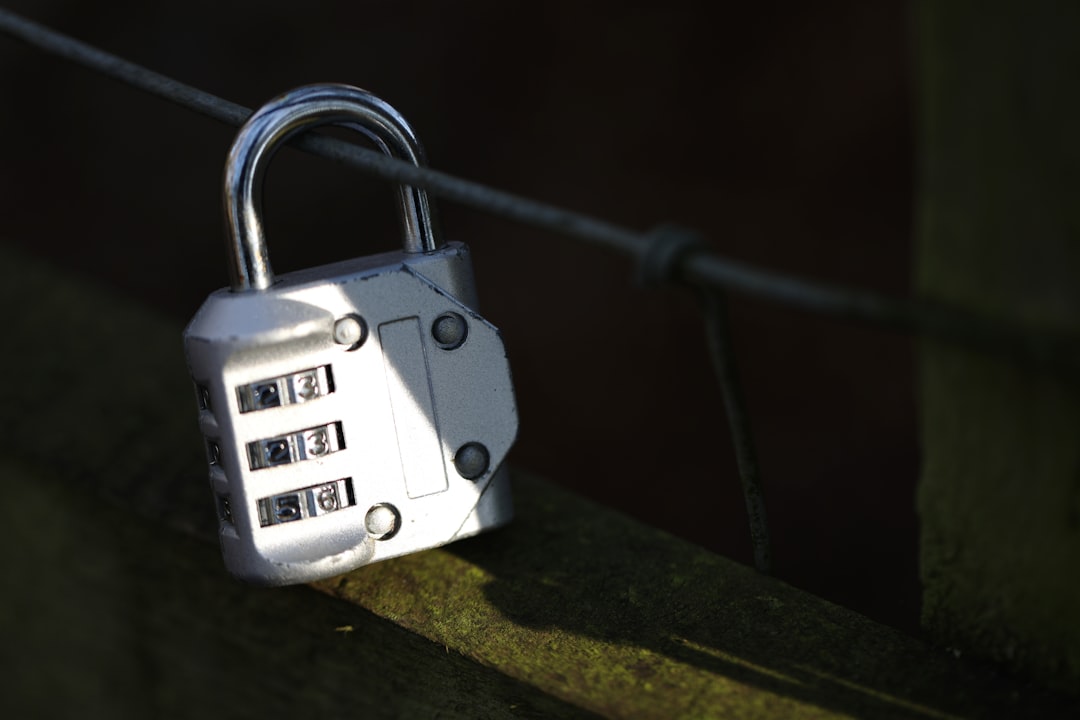
Photo by Luca Volpe on Unsplash

How Ente's Encryption Works
Ente uses client-side encryption with keys derived from your password. Here is the flow:
- You set a password when creating your account
- A master key is derived from your password on your device
- Each photo is encrypted with a unique key
- Photo keys are encrypted with your master key
- Only encrypted blobs are uploaded to the server
- The server stores encrypted data and encrypted metadata
- Decryption happens on your device when you view photos
This means:
- The server operator (you, when self-hosting) cannot view stored photos without the password
- A database breach exposes only encrypted blobs
- Sharing works by re-encrypting photo keys for the recipient
- If you forget your password and lose your recovery key, your photos are gone forever
This is real end-to-end encryption, not "encrypted at rest" marketing. The server is genuinely zero-knowledge.
Self-Hosting the Ente Server
Ente's server (called Museum) is written in Go and uses PostgreSQL for metadata and S3-compatible storage for encrypted photo blobs.
Prerequisites
- Docker and Docker Compose
- An S3-compatible storage backend (MinIO for self-hosting, or any S3 provider)
- A domain with HTTPS (the mobile apps require it)
Docker Compose Setup
version: "3.8"

services:
  museum:
    image: ghcr.io/ente-io/server:latest
    container_name: ente-museum
    restart: unless-stopped
    depends_on:
      - ente-db
      - minio
    ports:
      - "8080:8080"
    volumes:
      - ./museum.yaml:/museum.yaml:ro
      - ente-data:/data
    environment:
      ENTE_DB_HOST: ente-db
      ENTE_DB_PORT: "5432"
      ENTE_DB_NAME: ente
      ENTE_DB_USER: ente
      ENTE_DB_PASSWORD: ente_db_password

  ente-db:
    image: postgres:16-alpine
    container_name: ente-db
    restart: unless-stopped
    volumes:
      - ente-db-data:/var/lib/postgresql/data
    environment:
      POSTGRES_USER: ente
      POSTGRES_PASSWORD: ente_db_password
      POSTGRES_DB: ente

  minio:
    image: minio/minio:latest
    container_name: ente-minio
    restart: unless-stopped
    command: server /data --console-address ":9001"
    volumes:
      - minio-data:/data
    environment:
      MINIO_ROOT_USER: ente_minio
      MINIO_ROOT_PASSWORD: ente_minio_password
    ports:
      - "9000:9000"
      - "9001:9001"

volumes:
  ente-data:
  ente-db-data:
  minio-data:
Server Configuration
Create museum.yaml in your Ente directory:
db:
  host: ente-db
  port: 5432
  name: ente
  user: ente
  password: ente_db_password

s3:
  are_local_buckets: true
  b2-eu-cen:
    key: ente_minio
    secret: ente_minio_password
    endpoint: http://minio:9000
    region: eu-central-1
    bucket: ente-b2-eu-cen

jwt:
  secret: "generate-a-long-random-secret-here"

key:
  encryption: "generate-32-byte-hex-key"
  hash: "generate-32-byte-hex-key"
Generate the required keys:
# JWT secret
openssl rand -base64 48

# Encryption and hash keys (32-byte hex)
openssl rand -hex 32
openssl rand -hex 32
MinIO Bucket Setup
After starting the stack, create the required bucket in MinIO:
docker compose up -d

# Install MinIO client
docker exec ente-minio mc alias set local http://localhost:9000 ente_minio ente_minio_password
docker exec ente-minio mc mb local/ente-b2-eu-cen
The Ente server should now be accessible at http://your-server:8080.
Connecting Client Apps
Ente provides apps for all major platforms:
- Mobile -- iOS and Android apps (available on App Store and Google Play)
- Desktop -- Windows, macOS, and Linux apps
- Web -- Browser-based client
To connect the official apps to your self-hosted server, you need to configure the API endpoint. In the mobile apps:
- On the login screen, tap the settings icon or look for "Self-hosted"
- Enter your server URL (e.g.,
https://photos.yourdomain.com) - Create an account or log in
The web app can be self-hosted as well or used from web.ente.io pointed at your server.
Important: HTTPS Required
The mobile apps require HTTPS for the server connection. Set up your reverse proxy with a valid SSL certificate before trying to connect from mobile devices.
With Caddy:
photos.yourdomain.com {
    reverse_proxy ente-museum:8080
}
Want more media guides? Get guides like this in your inbox — Self-Hosted Weekly delivers one free deep-dive every week.
Migrating from Google Photos
Ente provides a migration tool for Google Takeout exports:
- Request your data from Google Takeout (select Google Photos only, choose .zip format)
- Download all the export archives
- Use the Ente CLI to import:
# Install the Ente CLI
# Download from https://github.com/ente-io/ente/releases (CLI section)

# Configure the CLI for your server
ente account add --endpoint https://photos.yourdomain.com

# Import from Google Takeout
ente export import --from /path/to/takeout/Google\ Photos/
The import preserves album structure, dates, and metadata. Processing time depends on your library size -- expect a few hours for libraries with tens of thousands of photos.
Migrating from Immich
If you are moving from Immich to Ente, export your library from Immich first, then import the files through the Ente client apps or CLI. There is no direct migration tool between the two, so the process involves:
- Export photos from Immich (or use the original source files)
- Upload to Ente via the desktop or mobile app
- Re-create albums manually
The main difference to be aware of: Immich stores photos unencrypted with server-side AI processing. Moving to Ente means giving up server-side features (face recognition, object detection, map view based on GPS) in exchange for end-to-end encryption. You cannot have both -- the server cannot analyze what it cannot see.
What You Gain and Lose vs Unencrypted Alternatives
You Gain
- True privacy -- Your server cannot see your photos, even if compromised
- Safe cloud backup -- You can use any storage provider (even untrusted ones) because data is encrypted
- Compliance -- Easier to meet privacy regulations when data is encrypted at rest and in transit
- Peace of mind -- Server admin access does not equal photo access
You Lose
- Server-side AI -- No face recognition, no object detection, no smart search (Immich and PhotoPrism offer these)
- Server-side thumbnails -- Thumbnails are generated client-side, which can be slower
- Easy sharing -- Shared links require the recipient to have an Ente account or use a special viewer
- Map view -- GPS metadata is encrypted, so server-side map generation is not possible
- De-duplication -- The server cannot detect duplicates in encrypted blobs
Comparison with Alternatives
Ente vs Immich
Immich is the most popular self-hosted Google Photos alternative. It offers face recognition, object detection, map view, smart search, and a timeline that closely mimics Google Photos. These features require server-side access to your unencrypted photos. Immich is the right choice if you trust your server security and want the smartest photo management possible. Ente is the right choice if encryption is non-negotiable.
Ente vs PhotoPrism
PhotoPrism provides AI-powered photo organization with face detection, place recognition, and automatic categorization. Like Immich, these features require unencrypted server-side access. PhotoPrism is more mature than Immich in some areas (particularly search and organization) but has a less polished mobile experience. The same trade-off applies: PhotoPrism for AI features, Ente for encryption.
Ente vs Google Photos
Google Photos offers unlimited storage (at compressed quality), excellent AI features, and seamless integration with Android. The cost is that Google has full access to your photo library for advertising, AI training, and whatever else they decide. Ente provides none of the AI features but guarantees that nobody -- not Google, not you as server operator, not a hacker who breaches your server -- can access photos without the encryption key.
Ente vs Cryptee
Cryptee is another encrypted photo/document storage service but is SaaS-only with no self-hosting option. Ente's open-source server allows full self-hosting. Both provide genuine end-to-end encryption. If you want the simplicity of a managed service with encryption, Cryptee works. If you want full infrastructure control, Ente's self-hosted option is unique in this space.
Storage Considerations
Since photos are encrypted, they cannot be compressed or de-duplicated server-side. Plan your storage accordingly:
- Average smartphone photo: 3-5 MB
- 10,000 photos: ~30-50 GB
- 50,000 photos: ~150-250 GB
- Videos increase storage needs substantially
MinIO works well for local storage. For larger collections, consider mounting network storage (NFS, CIFS) as the MinIO data directory, or use an external S3 provider. Since data is encrypted before upload, using a third-party S3 provider does not compromise privacy.
Backup Strategy
With Ente, backups are simpler than with unencrypted alternatives because the data is already encrypted:
# Back up PostgreSQL metadata
docker exec ente-db pg_dump -U ente ente > ente-metadata-$(date +%Y%m%d).sql

# MinIO data can be backed up with standard file tools or replicated to another MinIO instance
# The encrypted blobs can safely be copied to any storage, even untrusted
The encrypted blobs are safe to store anywhere. Your PostgreSQL backup contains encrypted metadata. Both are useless without the user's encryption key.
When to Choose Ente
Choose Ente when:
- Privacy and encryption are your primary concerns
- You do not trust server-side access to your photos (even your own server)
- You want to use untrusted storage backends safely
- You need a photo backup solution that is genuinely zero-knowledge
Choose something else when:
- You want AI-powered photo organization (face recognition, object search)
- You need server-side thumbnail generation for fast browsing
- Easy public sharing is important
- You prefer the Google Photos experience replicated locally (use Immich instead)
Ente occupies a unique niche in the self-hosted photo space: it is the only serious option that prioritizes encryption over features. For users who consider their photo library one of their most sensitive data sets, that trade-off is worth making.