Stirling PDF: The Swiss Army Knife for PDF Processing
You need to merge two PDFs. Or split one. Or compress a 50 MB scan down to a reasonable size. So you search "merge PDF online" and land on one of dozens of websites that want you to upload your documents to their servers, show you ads, limit you to 2 free operations per day, and then ask for $12/month.
Photo by Matthew Job Estacio on Unsplash
Your tax returns, contracts, and medical records don't belong on some random website's servers.
Stirling PDF is a self-hosted web application that handles virtually every PDF operation you'll ever need — merge, split, rotate, compress, OCR, convert, watermark, password-protect, and more. It runs locally, your files never leave your network, and there are no usage limits.
Why Self-Host PDF Tools?
The case for running your own PDF processor:
| Concern | Online PDF Tools | Stirling PDF |
|---|---|---|
| Privacy | Files uploaded to third-party servers | Files stay on your machine |
| Usage limits | 2-5 free operations/day typical | Unlimited |
| Cost | $6-15/month for premium | Free |
| Speed | Depends on upload/download | Instant (local processing) |
| File size limits | Often 25-100 MB max | Limited only by your hardware |
| Availability | Requires internet | Works offline on your LAN |
| Batch processing | Usually not available | Via API |
If you handle sensitive documents — financial records, legal paperwork, medical forms, business contracts — uploading them to iLovePDF or SmallPDF should make you uncomfortable. Self-hosting eliminates this concern entirely.
Docker Setup
Stirling PDF is one of the easiest self-hosted apps to deploy. A single container, no database required.
Basic setup
services:
  stirling-pdf:
    image: stirlingtools/stirling-pdf:latest
    container_name: stirling-pdf
    ports:
      - "8080:8080"
    volumes:
      - ./training-data:/usr/share/tessdata  # OCR language files
      - ./config:/configs
      - ./logs:/logs
    environment:
      - DOCKER_ENABLE_SECURITY=false
      - LANGS=en_GB
    restart: unless-stopped
docker compose up -d
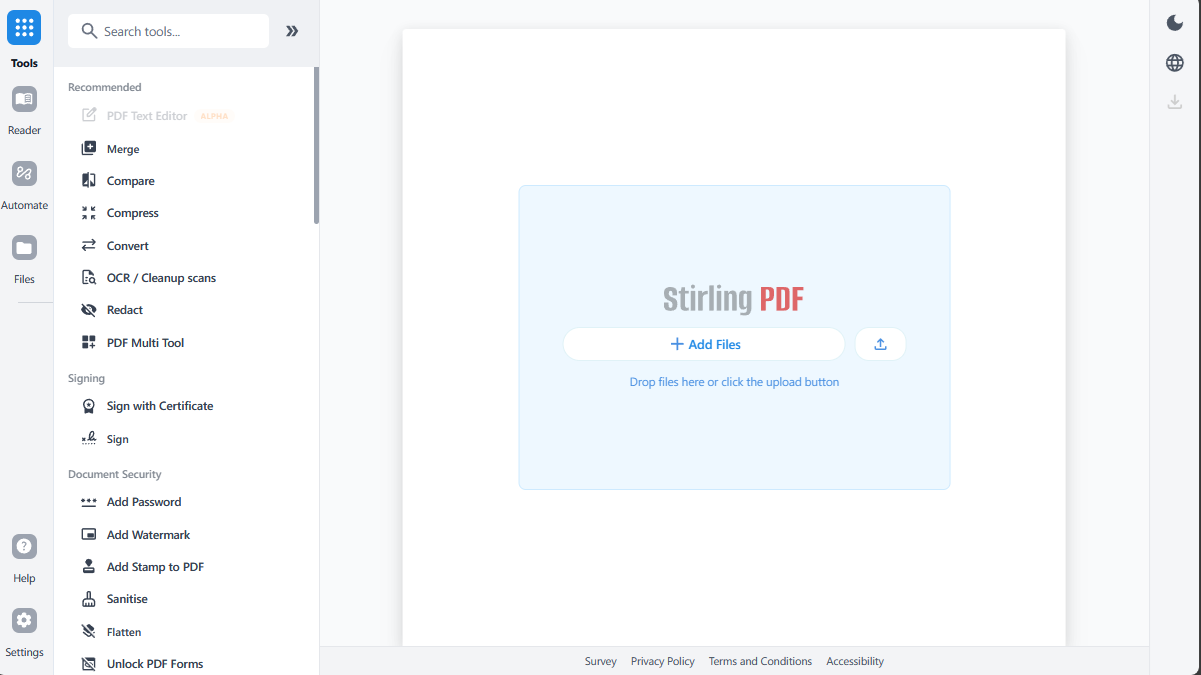
Open http://your-server:8080 and you're done. No accounts, no setup wizard — just a clean interface with every tool available immediately.
With authentication
For shared or internet-exposed instances, enable the built-in authentication:
    environment:
      - DOCKER_ENABLE_SECURITY=true
      - SECURITY_INITIALLOGIN_USERNAME=admin
      - SECURITY_INITIALLOGIN_PASSWORD=changeme
This adds a login page. You can create multiple user accounts with different permission levels.
With OCR support
For OCR (extracting text from scanned documents), you need Tesseract language data. Stirling PDF handles this automatically if you mount the training data volume, but you can pre-download additional languages:
# Download additional OCR languages (e.g., German, French, Spanish)
mkdir -p training-data
wget -P training-data https://github.com/tesseract-ocr/tessdata/raw/main/deu.traineddata
wget -P training-data https://github.com/tesseract-ocr/tessdata/raw/main/fra.traineddata
wget -P training-data https://github.com/tesseract-ocr/tessdata/raw/main/spa.traineddata
English is included by default.
Resource requirements
Stirling PDF is lightweight for most operations:
- Idle: ~100 MB RAM
- Basic operations (merge, split, rotate): Minimal CPU, nearly instant
- OCR: CPU-intensive. A large scanned document can spike to 1-2 GB RAM and take 30-60 seconds.
- Conversion: Depends on document complexity. Most conversions complete in seconds.
Any machine that can run Docker can run Stirling PDF. A Raspberry Pi 4 handles it fine for occasional use.
Core Features
Merge PDFs
Combine multiple PDFs into one:
- Go to Merge
- Upload your PDF files
- Drag to reorder if needed
- Click Merge
Simple, instant, no limits on file count.
Split PDFs
Break a PDF into parts:
- Split by pages: Extract specific pages (e.g., pages 1-3, 7, 12-15)
- Split by size: Break into chunks under a certain file size
- Split at every N pages: Create separate files every N pages
- Extract all pages: Each page becomes its own PDF
Rotate pages
Rotate individual pages or all pages by 90, 180, or 270 degrees. Useful for scanned documents that came through the scanner sideways.
Compress PDFs
Reduce file size without noticeable quality loss. Stirling PDF offers multiple compression levels:
- Low compression: Minimal quality reduction, moderate size savings
- Medium compression: Good balance for most documents
- High compression: Maximum size reduction, some visible quality loss in images
A 50 MB scanned document typically compresses to 5-10 MB at medium quality — good enough for email or archival.
Want more productivity guides? Get guides like this in your inbox — Self-Hosted Weekly delivers one free deep-dive every week.
OCR Capabilities
OCR (Optical Character Recognition) converts scanned images and photographed documents into searchable, selectable text.
When you need OCR
- Scanned paper documents (the scanner produced an image-based PDF)
- Photographed receipts or business cards
- PDFs where you can't select or copy text
Using OCR in Stirling PDF
- Go to OCR / Clean Scans
- Upload your scanned PDF
- Select the document language(s)
- Choose the OCR mode:
- Normal OCR: Adds a text layer over the scanned image (preserves original appearance)
- Force OCR: Recreates the document as text (smaller file size, different appearance)
- Clean + OCR: Straightens pages and removes noise before OCR
- Click Process
The output is a PDF with selectable, searchable text — essential for feeding into document management systems like Paperless-ngx.
OCR quality tips
- Higher resolution scans produce better OCR — 300 DPI minimum
- Clean originals matter — Creased, stained, or faded documents produce more errors
- Select the correct language — OCR accuracy depends on the language model
- Straight scans help — Use the "Clean Scans" option to auto-straighten skewed pages
Converting Between Formats
Stirling PDF handles conversions in both directions:
To PDF
- Images (PNG, JPG, TIFF, GIF) to PDF
- Word documents (DOCX) to PDF
- HTML to PDF
- Markdown to PDF
- Excel/PowerPoint to PDF (via LibreOffice)
From PDF
- PDF to images (PNG, JPG, TIFF)
- PDF to Word (DOCX)
- PDF to HTML
- PDF to text (plain text extraction)
Batch conversion
Upload multiple files at once for conversion. Useful when you need to convert an entire folder of images into a single PDF or extract all pages as images.
Form Filling
Stirling PDF can fill interactive PDF forms:
- Upload a PDF with form fields
- Stirling PDF detects and displays the fillable fields
- Enter your data
- Download the filled form
This works with standard PDF form fields (AcroForms). It won't work with forms that are just visual layouts without actual form field definitions — those need to be filled by annotating over the document.
Security Features
Password protection
Add or remove passwords from PDFs:
- Encrypt: Set a password to open the document, with configurable encryption strength (128-bit AES, 256-bit AES)
- Decrypt: Remove password protection (you need the current password)
- Permissions: Set granular permissions (allow/deny printing, copying, editing)
Watermarking
Add text or image watermarks to PDF pages:
- Custom text (e.g., "CONFIDENTIAL," "DRAFT," your company name)
- Configurable opacity, rotation, and position
- Apply to all pages or specific pages
Redaction
Remove sensitive content permanently:
- Draw redaction boxes over sensitive information
- The redacted content is permanently removed from the file (not just visually covered)
Sanitization
Remove hidden metadata and embedded content:
- Strip document metadata (author, creation date, software used)
- Remove embedded JavaScript
- Remove embedded files and attachments
- Flatten annotations
Useful before sharing documents externally.
API Usage for Automation
Stirling PDF exposes a REST API for every operation, making it scriptable and automatable.
API documentation
Access the built-in Swagger documentation at http://your-server:8080/swagger-ui/index.html. Every feature available in the web interface has a corresponding API endpoint.
Example: Merge PDFs via API
curl -X POST "http://your-server:8080/api/v1/general/merge-pdfs" \
  -F "[email protected]" \
  -F "[email protected]" \
  -o merged.pdf
Example: OCR a scanned document
curl -X POST "http://your-server:8080/api/v1/misc/ocr-pdf" \
  -F "[email protected]" \
  -F "languages=eng" \
  -F "ocrType=Normal" \
  -o searchable.pdf
Example: Compress a PDF
curl -X POST "http://your-server:8080/api/v1/general/optimize-pdf" \
  -F "[email protected]" \
  -F "optimizeLevel=2" \
  -o compressed.pdf
Automation ideas
- Watch folder: Script that OCRs every new PDF dropped into a folder
- Email attachment processing: Automatically compress large PDF attachments
- Document pipeline: Convert uploaded images to PDF, OCR them, then send to Paperless-ngx
- Batch watermarking: Add "CONFIDENTIAL" to every file in a directory before sharing
Integration with Paperless-ngx
A powerful combination: use Stirling PDF's API to OCR and clean scanned documents before dropping them into Paperless-ngx's consume folder. This gives you cleaner text extraction and better search results in Paperless.
#!/bin/bash
# OCR and clean a scanned PDF, then move to Paperless consume folder
for file in /scans/incoming/*.pdf; do
    curl -s -X POST "http://localhost:8080/api/v1/misc/ocr-pdf" \
        -F "fileInput=@$file" \
        -F "languages=eng" \
        -F "ocrType=Clean" \
        -o "/paperless/consume/$(basename $file)"
    rm "$file"
done
Comparison with Desktop and Online Alternatives
| Tool | Type | Cost | Privacy | Features |
|---|---|---|---|---|
| Stirling PDF | Self-hosted | Free | Full control | Comprehensive |
| Adobe Acrobat | Desktop | $23/month | Local processing | Most complete |
| iLovePDF | Online | Free tier / $7/month | Cloud upload | Good |
| SmallPDF | Online | Free tier / $9/month | Cloud upload | Good |
| PDF24 | Desktop + Online | Free | Local (desktop) | Good |
| LibreOffice Draw | Desktop | Free | Local processing | Basic PDF editing |
Adobe Acrobat is the gold standard for PDF manipulation, but $23/month is steep for occasional use. Stirling PDF covers 90% of what most people need from Acrobat at zero cost, with the added benefit of an API for automation.
The Honest Trade-offs
Stirling PDF is great if:
- You process PDFs regularly and don't want to pay for Adobe or upload to cloud tools
- You handle sensitive documents that shouldn't leave your network
- You want API-driven automation for document pipelines
- You need OCR for scanned documents
Stirling PDF is not ideal if:
- You need advanced PDF editing (reflowing text, editing graphics) — that's Adobe territory
- You process PDFs once a year and a free online tool is fine
- You need perfect document fidelity for complex layouts during conversion
Bottom line: Stirling PDF is one of those self-hosted tools that earns its place immediately. The first time you need to merge, compress, or OCR a PDF and you do it in 5 seconds without uploading anything to a sketchy website, it justifies the 2 minutes it took to deploy. The API makes it especially valuable as part of a document automation pipeline. For most people, it completely replaces the need for paid PDF tools.
Resources
- Stirling PDF GitHub
- Stirling PDF documentation
- API documentation — Full Swagger reference
- Docker Hub
- Tesseract OCR language data — Additional OCR languages