
Self-Hosting HedgeDoc: Real-Time Collaborative Markdown Editing
Every team needs a place to write things down together. Google Docs works, but it produces proprietary documents that lock you in. HackMD is great, but it's SaaS. What if you want real-time collaborative writing in markdown, on your own infrastructure?
Photo by Les Taylor on Unsplash
HedgeDoc (formerly CodiMD) is a real-time collaborative markdown editor that you can self-host. Think Google Docs, but the output is clean markdown. Multiple people edit simultaneously, see each other's cursors, and produce documents that work anywhere markdown does — GitHub, static site generators, wikis, or just plain text files.
Why HedgeDoc
There's no shortage of note-taking apps. What makes HedgeDoc different:
- Real-time collaboration — multiple editors, live cursors, instant sync
- Markdown-native — the output is plain markdown, not a proprietary format
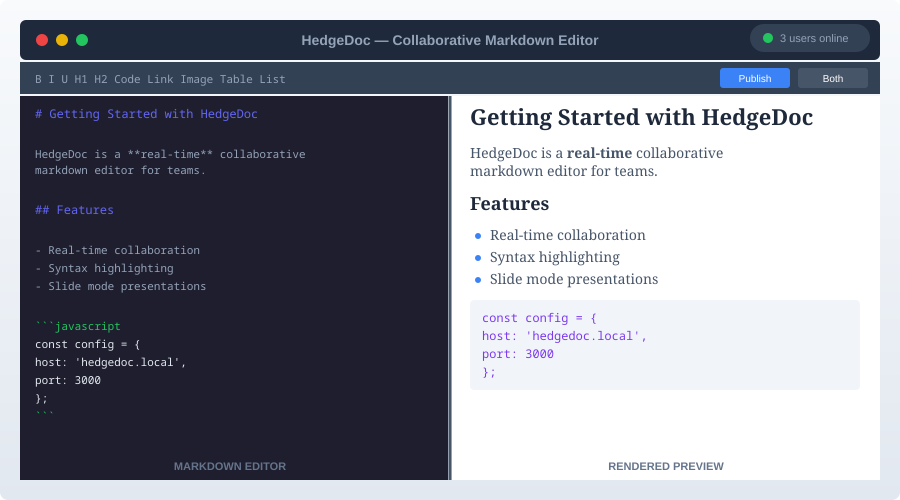
- Split-pane editing — write markdown on the left, see rendered output on the right
- No accounts required (optional) — share a link and anyone can edit
- Presentation mode — turn any document into a slideshow with
---separators - Diagrams built-in — MermaidJS, PlantUML, Vega-Lite charts, and math via MathJax
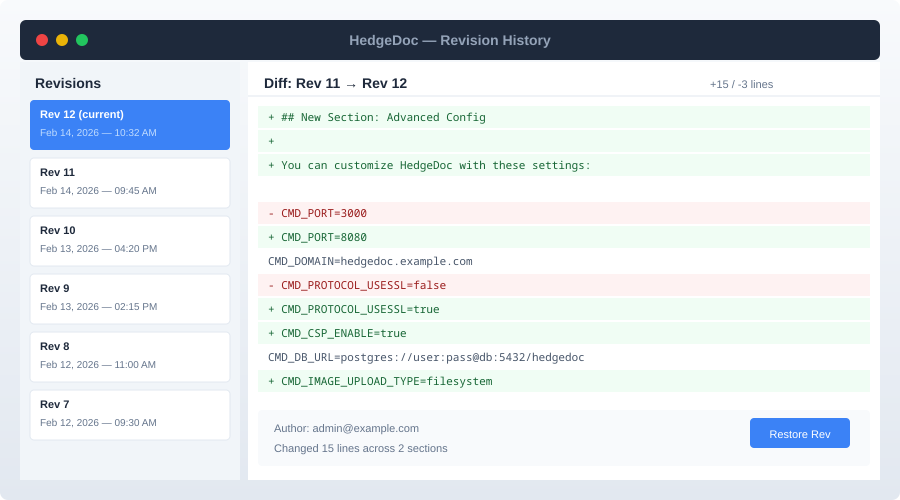
- Revision history — every change is tracked, with diffing between versions
Who HedgeDoc is for
HedgeDoc fills a specific niche. It's ideal for:
- Meeting notes — everyone in the meeting adds notes simultaneously
- Technical documentation — write docs that live as markdown files in your repo
- Sprint planning — collaborative agenda building and note-taking
- Brainstorming sessions — fast, low-friction collaborative writing
- Internal wikis — when you want something lighter than BookStack or Wiki.js
It's less suitable for long-form document editing where formatting control matters (use LibreOffice or Google Docs for that) or for personal note-taking (Obsidian or Joplin are better choices).
HedgeDoc vs. Etherpad vs. CryptPad
| Feature | HedgeDoc | Etherpad | CryptPad |
|---|---|---|---|
| Self-hosted | Yes | Yes | Yes |
| Markdown support | Native | Plugin | Yes |
| Real-time collab | Yes | Yes | Yes |
| Split-pane preview | Yes | No | No |
| Diagrams (Mermaid) | Yes | No | No |
| Presentation mode | Yes | No | Yes |
| End-to-end encryption | No | No | Yes |
| Authentication | Multiple providers | Basic | Built-in |
| Resource usage | Moderate (~256 MB) | Low (~128 MB) | Moderate (~512 MB) |
| Export formats | Markdown, HTML, PDF | HTML, TXT | Multiple |
| Mobile experience | Good (responsive) | Fair | Good |
When to choose HedgeDoc
Pick HedgeDoc when markdown is your primary format and you want rich rendering (diagrams, math, syntax highlighting). Pick Etherpad for pure plaintext collaboration with minimal overhead. Pick CryptPad if end-to-end encryption is a hard requirement.
Self-Hosting HedgeDoc: Setup
Server requirements
HedgeDoc is moderately lightweight:
- Minimum: 512 MB RAM, 1 CPU core
- Recommended: 1 GB RAM, 2 CPU cores
- Storage: 1 GB for the application + whatever your uploaded images need
- Database: PostgreSQL (recommended) or MySQL/MariaDB
Docker Compose setup
HedgeDoc 2.x is the current major version. Here's a production-ready setup:
version: "3.8"

services:
  hedgedoc:
    container_name: hedgedoc
    image: quay.io/hedgedoc/hedgedoc:2
    environment:
      HD_BASE_URL: "https://docs.yourdomain.com"
      HD_DATABASE_TYPE: "postgres"
      HD_DATABASE_NAME: "hedgedoc"
      HD_DATABASE_HOST: "database"
      HD_DATABASE_PORT: "5432"
      HD_DATABASE_USER: "hedgedoc"
      HD_DATABASE_PASS: "${POSTGRES_PASSWORD}"
      HD_SESSION_SECRET: "${SESSION_SECRET}"
      HD_MEDIA_BACKEND: "filesystem"
      HD_MEDIA_BACKEND_FILESYSTEM_UPLOAD_PATH: "/hedgedoc/public/uploads"
    volumes:
      - uploads:/hedgedoc/public/uploads
    ports:
      - "3000:3000"
    depends_on:
      database:
        condition: service_healthy
    restart: always

  database:
    container_name: hedgedoc_db
    image: postgres:16-alpine
    environment:
      POSTGRES_USER: hedgedoc
      POSTGRES_PASSWORD: ${POSTGRES_PASSWORD}
      POSTGRES_DB: hedgedoc
    volumes:
      - pgdata:/var/lib/postgresql/data
    restart: always
    healthcheck:
      test: ["CMD-SHELL", "pg_isready -U hedgedoc"]
      interval: 10s
      timeout: 5s
      retries: 5

volumes:
  pgdata:
  uploads:
Create a .env file:
POSTGRES_PASSWORD=your-secure-database-password
SESSION_SECRET=a-long-random-string-at-least-32-characters
Generate a strong session secret:
openssl rand -hex 32
Starting HedgeDoc
docker compose up -d
Access the editor at http://your-server:3000. The first thing you'll see is the registration page.
Want more productivity guides? Get guides like this in your inbox — Self-Hosted Weekly delivers one free deep-dive every week.
Authentication Options
HedgeDoc supports several authentication methods. You can enable multiple simultaneously.
Local accounts
The simplest option — users register with email and password. Enabled by default. Fine for small teams, but you're managing another set of credentials.
LDAP
Connect to your existing LDAP/Active Directory:
environment:
  HD_AUTH_LDAP_URL: "ldap://ldap.yourdomain.com"
  HD_AUTH_LDAP_SEARCH_BASE: "ou=users,dc=yourdomain,dc=com"
  HD_AUTH_LDAP_SEARCH_FILTER: "(uid={{username}})"
  HD_AUTH_LDAP_BIND_DN: "cn=admin,dc=yourdomain,dc=com"
  HD_AUTH_LDAP_BIND_CREDENTIALS: "${LDAP_BIND_PASSWORD}"
OAuth2 / OpenID Connect
Works with Authentik, Keycloak, Authelia, GitHub, GitLab, and any standard OIDC provider:
environment:
  HD_AUTH_OIDC_IDENTIFIER: "authentik"
  HD_AUTH_OIDC_DISPLAY_NAME: "Authentik"
  HD_AUTH_OIDC_ISSUER: "https://auth.yourdomain.com/application/o/hedgedoc/"
  HD_AUTH_OIDC_CLIENT_ID: "hedgedoc"
  HD_AUTH_OIDC_CLIENT_SECRET: "${OIDC_CLIENT_SECRET}"
  HD_AUTH_OIDC_SCOPE: "openid email profile"
This is the recommended approach if you're already running an identity provider. Single sign-on across your self-hosted services is worth the initial setup effort.
Disabling registration
For private instances, you probably want to disable open registration:
environment:
  HD_AUTH_LOCAL_ENABLE_REGISTER: "false"
Create accounts manually through the admin panel or rely on SSO.
Using HedgeDoc Day-to-Day
Creating notes
Click "New Note" and start typing markdown. The URL is immediately shareable. HedgeDoc supports standard markdown plus extensions:
Syntax highlighting with language-specific blocks:
```python
def hello():
    print("Hello from HedgeDoc")
```
Mermaid diagrams — render flowcharts, sequence diagrams, and more inline:
```mermaid
graph TD
    A[User Request] --> B{Auth Check}
    B -->|Authenticated| C[Serve Content]
    B -->|Not Authenticated| D[Redirect to Login]
```
Math equations via MathJax:
$$E = mc^2$$
Tables, task lists, footnotes — all the GitHub Flavored Markdown extensions you'd expect.
Permission levels
Each note has a permission level:
- Freely — anyone with the link can read and edit
- Editable — logged-in users can edit, anyone can read
- Limited — only the owner can edit, logged-in users can read
- Locked — only the owner can edit, anyone can read
- Protected — only the owner can read and edit
- Private — only the owner can access
For team use, "Editable" is usually the right default — your team can edit, and you can share read-only links externally.
Presentation mode
Any HedgeDoc document becomes a slideshow by separating slides with ---:
# Sprint Review

---

## Completed This Sprint
- Feature A shipped
- Bug B fixed

---

## Next Sprint
- Feature C
- Performance improvements

---

## Questions?
Press the presentation button and you've got a slide deck. It's rough — no animations or fancy transitions — but for internal presentations, it's fast and eliminates the "update the slides" step. Your notes are your slides.
Revision history
Every change is saved. Click the revision button to see a timeline of changes, compare any two revisions with a visual diff, and restore previous versions. This is especially useful for meeting notes where someone accidentally deletes a section.
Reverse Proxy Setup
For production use, put HedgeDoc behind a reverse proxy with HTTPS.
Caddy:
docs.yourdomain.com {
    reverse_proxy localhost:3000
}
Nginx:
server {
    server_name docs.yourdomain.com;

    client_max_body_size 100M;

    location / {
        proxy_pass http://localhost:3000;
        proxy_set_header Host $host;
        proxy_set_header X-Real-IP $remote_addr;
        proxy_set_header X-Forwarded-For $proxy_add_x_forwarded_for;
        proxy_set_header X-Forwarded-Proto $scheme;

        # WebSocket support for real-time collaboration
        proxy_http_version 1.1;
        proxy_set_header Upgrade $http_upgrade;
        proxy_set_header Connection "upgrade";
    }
}
WebSocket support is essential — without it, real-time collaboration won't work.
Image and Media Uploads
By default, HedgeDoc stores uploaded images on the local filesystem. You can also configure S3-compatible storage:
environment:
  HD_MEDIA_BACKEND: "s3"
  HD_MEDIA_BACKEND_S3_ACCESS_KEY: "${S3_ACCESS_KEY}"
  HD_MEDIA_BACKEND_S3_SECRET_KEY: "${S3_SECRET_KEY}"
  HD_MEDIA_BACKEND_S3_BUCKET: "hedgedoc-uploads"
  HD_MEDIA_BACKEND_S3_ENDPOINT: "https://s3.yourdomain.com"
  HD_MEDIA_BACKEND_S3_REGION: "us-east-1"
This works well with MinIO if you're keeping everything self-hosted. Images are uploaded by pasting or dragging into the editor, and they get a permanent URL you can reference in the markdown.
Backup Strategy
Back up two things:
- The PostgreSQL database — contains all notes, user accounts, and metadata
- The uploads directory — contains all uploaded images and files
# Database backup
docker exec -t hedgedoc_db pg_dumpall -c -U hedgedoc > hedgedoc-backup.sql

# Uploads backup (if using filesystem storage)
tar -czf hedgedoc-uploads.tar.gz /path/to/uploads
Automate this with a daily cron job. For disaster recovery, you need both the database dump and the uploads archive.
Practical Tips
Use templates for recurring notes. Create a meeting-notes template with standard sections (Attendees, Agenda, Action Items) and duplicate it for each meeting. Saves time and keeps your notes consistent.
Integrate with Git. HedgeDoc's markdown output can be copy-pasted directly into your repo's docs. Some teams write docs in HedgeDoc collaboratively, then commit the final version to Git.
Set up a landing page. Configure a default note as your team's home page — a directory of frequently-used documents, meeting schedules, and quick links.
Keep notes organized. HedgeDoc doesn't have folders. Use a consistent naming convention (team/meeting/2026-02-14) and maintain an index note that links to everything.
Honest Trade-offs
HedgeDoc is great if you:
- Need real-time collaborative markdown editing
- Want clean markdown output (not proprietary formats)
- Run meetings where everyone takes notes simultaneously
- Already use markdown for documentation
- Want something lighter than a full wiki
Consider alternatives if you:
- Need end-to-end encryption (use CryptPad)
- Want a full knowledge base with hierarchy and permissions (use BookStack or Wiki.js)
- Need rich formatting beyond what markdown offers (use Google Docs or LibreOffice)
- Want offline-first personal notes (use Obsidian)
- Need mobile apps (HedgeDoc is web-only, though the responsive design works on phones)
The bottom line: HedgeDoc does one thing well — real-time collaborative markdown editing. If your team writes in markdown and you want to collaborate without vendor lock-in, HedgeDoc is the best self-hosted option. It won't replace your wiki or your personal notes app, but for collaborative writing sessions, it's hard to beat.