
Dashy: The Most Customizable Self-Hosted Dashboard
Every self-hoster eventually reaches the point where they can't remember all the URLs and ports for their services. Was Jellyfin on port 8096 or 8920? Is Grafana at /grafana or its own subdomain? You end up with a text file of bookmarks, or worse, you just memorize everything until you forget.
Photo by Magnus Engø on Unsplash
Dashy is a self-hosted dashboard that gives you a single page with links to all your services, organized however you want. But unlike simpler dashboards, Dashy goes deep on customization: themes, widgets, status indicators, multiple pages, authentication, and a visual editor that generates YAML configuration for you.
Why a Dashboard?
If you run three services, you don't need a dashboard. But once you're managing ten, twenty, or more, a central landing page becomes genuinely useful:
- One URL to remember — Bookmark your dashboard and find everything from there
- Status at a glance — See which services are running without checking each one
- Organized by function — Group media, infrastructure, monitoring, and dev tools into sections
- Shareable — Family members can find services without asking you for URLs
- Onboarding yourself — After a break, your dashboard reminds you what you're running
Dashy vs. Homepage vs. Homarr
These three are the most popular self-hosted dashboards in 2026. They all solve the same core problem but with very different approaches.
| Feature | Dashy | Homepage | Homarr |
|---|---|---|---|
| Configuration | YAML file | YAML files | Web UI (database) |
| Customization depth | Extremely high | Moderate | High |
| Widgets | 50+ built-in | Service-specific integrations | Widget-based |
| Themes | 50+ built-in, custom CSS | Limited (CSS overrides) | Theme system |
| Multi-page | Yes | No (single page) | Yes (boards) |
| Visual editor | Yes (generates YAML) | No | Yes (native) |
| Status checking | Built-in | Via integrations | Built-in |
| Authentication | Built-in (multiple methods) | None (relies on reverse proxy) | Built-in |
| Resource usage | ~80 MB RAM | ~30 MB RAM | ~150 MB RAM |
| Search | Built-in with keyboard shortcut | Built-in | Built-in |
| Config as code | Native (YAML) | Native (YAML) | Export/import |
Choose Dashy when
- You want maximum control over layout, appearance, and behavior
- You prefer configuration-as-code but also want a visual editor option
- You need built-in authentication without a separate auth layer
- You want widgets for external data (weather, system stats, crypto prices, etc.)
- You like having 50+ built-in themes to choose from
Choose Homepage when
- You want deep service integrations that pull live data (Sonarr queue, Plex sessions, Docker stats)
- You prefer minimal resource usage and fast load times
- You want something that just works with less configuration
- You're comfortable with YAML-only config (no visual editor)
Choose Homarr when
- You want to build your dashboard entirely through a web UI without touching config files
- You want drag-and-drop layout editing
- You prefer a more "app store" approach to adding widgets and integrations
- You need multi-board support for organizing different contexts
The honest take: Homepage has the best service integrations by far — it can show your Sonarr download queue, Plex active streams, and Pi-hole stats in real-time. Dashy has the most visual customization options. Homarr has the easiest initial setup. Pick based on what matters most to you.
Installation
services:
  dashy:
    image: lissy93/dashy:latest
    container_name: dashy
    ports:
      - "4000:8080"
    volumes:
      - ./conf.yml:/app/user-data/conf.yml
    environment:
      - NODE_ENV=production
    healthcheck:
      test: ['CMD', 'node', '/app/services/healthcheck']
      interval: 1m30s
      timeout: 10s
      retries: 3
      start_period: 40s
    restart: unless-stopped
Create a minimal conf.yml to start:
pageInfo:
  title: My Homelab
  description: Dashboard
  navLinks:
    - title: GitHub
      path: https://github.com

sections:
  - name: Media
    icon: fas fa-film
    items:
      - title: Jellyfin
        url: http://192.168.1.100:8096
        icon: hl-jellyfin
      - title: Sonarr
        url: http://192.168.1.100:8989
        icon: hl-sonarr

  - name: Infrastructure
    icon: fas fa-server
    items:
      - title: Portainer
        url: http://192.168.1.100:9000
        icon: hl-portainer
      - title: Traefik
        url: http://192.168.1.100:8080
        icon: hl-traefik
docker compose up -d
Visit http://your-server:4000 and you'll see your dashboard.
Want more infrastructure guides? Get guides like this in your inbox — Self-Hosted Weekly delivers one free deep-dive every week.
YAML Configuration Deep Dive
Dashy's configuration is a single YAML file that controls everything. This is both its greatest strength (version-controllable, reproducible, portable) and its biggest learning curve.
Page settings
pageInfo:
  title: Homelab
  description: My self-hosted services
  logo: /web-icons/dashy.png
  navLinks:
    - title: Docs
      path: /docs
  footerText: ''
Sections and items
Sections are groups of service links. Each item has at minimum a title and URL:
sections:
  - name: Monitoring
    icon: fas fa-chart-line
    displayData:
      sortBy: alphabetical
      collapsed: false
      cols: 2
    items:
      - title: Grafana
        description: Metrics and dashboards
        url: https://grafana.mydomain.com
        icon: hl-grafana
        target: newtab
        statusCheck: true
        statusCheckUrl: https://grafana.mydomain.com/api/health
      - title: Uptime Kuma
        description: Uptime monitoring
        url: https://uptime.mydomain.com
        icon: hl-uptime-kuma
        statusCheck: true
Icons
Dashy supports multiple icon sources, which is one of its strongest features:
- Homelab icons —
hl-jellyfin,hl-sonarr,hl-grafana(hundreds of self-hosted app icons built in) - Font Awesome —
fas fa-server,fab fa-docker - Material Design —
mdi-home-assistant - Favicon —
favicon(auto-fetches the service's favicon) - URL — Direct link to any image
- Generative —
generative(creates a unique icon from the item name) - Emoji — Use emoji directly as icons
The homelab icon pack covers most popular self-hosted apps out of the box.
Layout control
You can control how sections display:
sections:
  - name: Wide Section
    displayData:
      cols: 3           # Number of columns for items
      rows: 2           # Number of rows before scrolling
      itemSize: large    # small, medium, large
      sectionLayout: grid  # grid or auto

  - name: Compact Section
    displayData:
      cols: 1
      itemSize: small
      collapsed: true    # Start collapsed, click to expand
Widgets
Dashy includes over 50 widgets for displaying external data. These go beyond just links to your services:
sections:
  - name: System Info
    widgets:
      - type: gl-current-cpu
        options:
          hostname: http://192.168.1.100:61208
      - type: gl-current-mem
        options:
          hostname: http://192.168.1.100:61208

  - name: Weather
    widgets:
      - type: weather
        options:
          apiKey: your-openweathermap-key
          city: Seattle

  - name: Network
    widgets:
      - type: pi-hole-stats
        options:
          hostname: http://192.168.1.1:80
Widget categories include:
- System monitoring — CPU, memory, disk, network (via Glances)
- Network — Pi-hole stats, speed test, public IP
- Weather — Current conditions, forecasts
- Productivity — Clock, calendar, RSS feeds
- Finance — Stock prices, crypto tickers
- Dynamic — Iframe embeds, API responses, custom HTML
The Glances-based system widgets are particularly useful. Install Glances on your server and Dashy pulls live CPU, RAM, and disk data without needing a separate monitoring setup.
Gotcha: Some widgets require external API keys (weather, finance). The system monitoring widgets require Glances to be running on the target machine. Don't expect all 50+ widgets to work out of the box without some setup.
Themes and Appearance
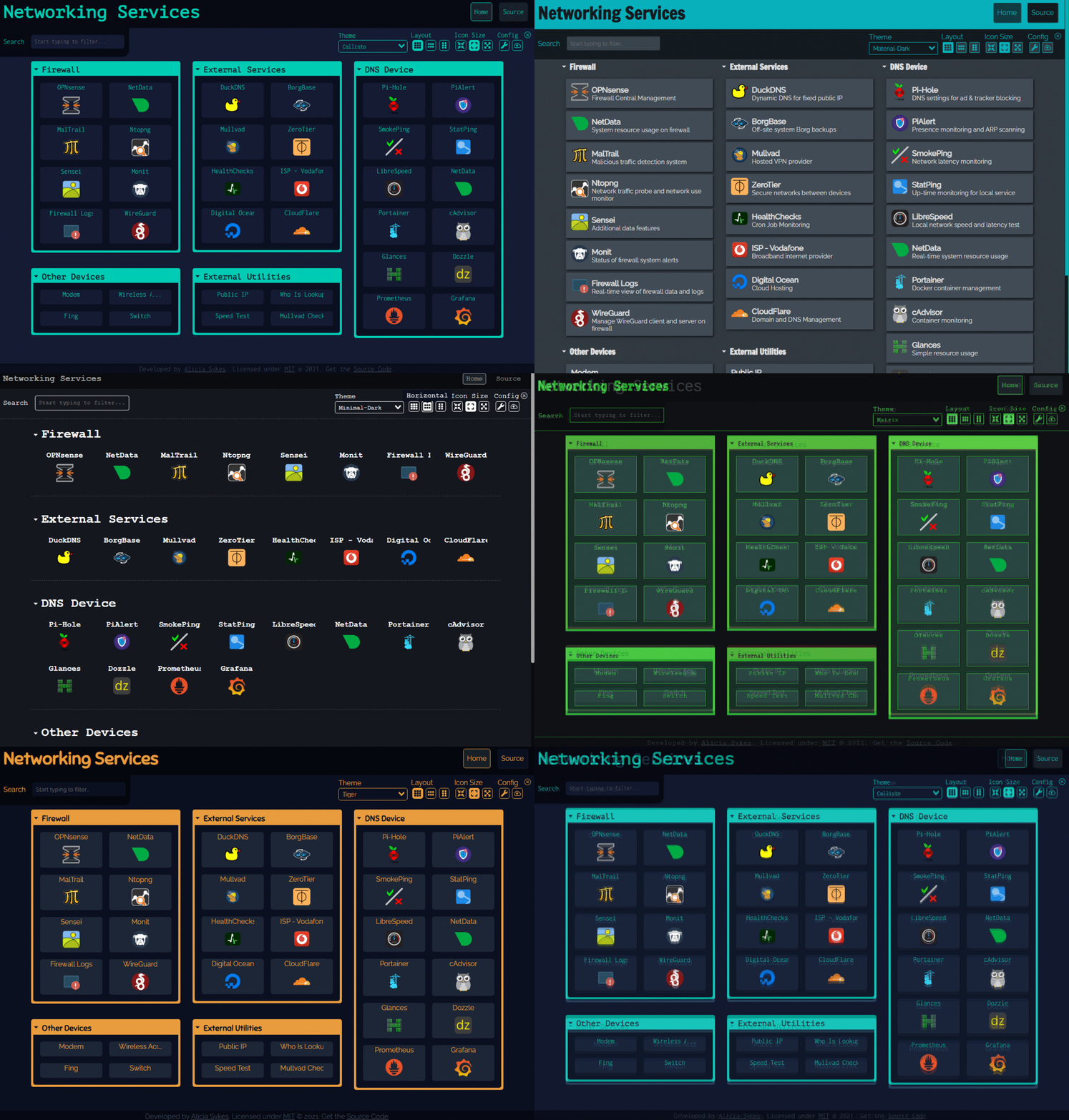
Dashy ships with over 50 built-in themes, from clean minimalist to cyberpunk neon. Switch themes in the UI or set one in config:
appConfig:
  theme: dracula
  # Or: material-dark, nord, matrix, one-dark, lissy, colorful, etc.
  customCss: |
    .item {
      border-radius: 12px;
    }
You can also create entirely custom themes with CSS. Dashy exposes CSS variables for every color, so you can restyle it without fighting the cascade:
appConfig:
  cssThemes:
    - name: My Theme
      styles: >
        --background: #1a1a2e;
        --primary: #16213e;
        --accent: #e94560;
Status Checking
One of Dashy's most practical features is built-in status checking for your services:
items:
  - title: Nextcloud
    url: https://cloud.mydomain.com
    statusCheck: true
    # Optional: use a different URL for the health check
    statusCheckUrl: https://cloud.mydomain.com/status.php
    statusCheckAcceptCodes: '200,302'
    statusCheckMaxRedirects: 3
When enabled, each item shows a small colored indicator: green for up, red for down, orange for slow response. This turns your dashboard into a basic uptime monitor.
Limitations to know about:
- Status checks run from the browser (client-side), so the browser must be able to reach the service URLs
- CORS can block status checks for some services — you'll see false negatives
- High check frequency with many services can slow page load
- For serious monitoring, use Uptime Kuma or a dedicated tool — Dashy's status checks are for convenience, not alerting
Authentication
Dashy has built-in authentication, which is unusual for a dashboard:
appConfig:
  auth:
    users:
      - user: admin
        hash: YOUR_SHA256_HASH
        type: admin
      - user: guest
        hash: GUEST_HASH
        type: normal
    enableGuestAccess: false
Generate a password hash:
echo -n 'your-password' | sha256sum
Authentication methods include:
- Simple — Username/password with SHA-256 hashes in config
- Keycloak — Full OIDC integration
- Header-based — Trust an upstream reverse proxy's auth headers (works with Authelia, Authentik)
For most homelabs, header-based auth via your reverse proxy is the better approach. Dashy's built-in auth is fine for basic access control, but it's not a substitute for a real auth layer if you're exposing your dashboard to the internet.
The Visual Editor
If writing YAML from scratch feels tedious, Dashy has a visual configuration editor built into the UI. Click the edit button and you get a form-based interface for adding sections, items, and widgets. The editor generates valid YAML that you can export and commit to version control.
This is a reasonable middle ground: start with the visual editor, then fine-tune the YAML directly once you're comfortable. The visual editor doesn't expose every option, but it covers the most common ones.
Multi-Page Support
Dashy supports multiple pages for organizing large numbers of services:
pages:
  - name: Home
    path: /
  - name: Media
    path: /media
  - name: Development
    path: /dev

sections:
  # Sections for the home page
  - name: Quick Links
    page: /
    items: [...]

  # Sections for the media page
  - name: Streaming
    page: /media
    items: [...]
This is useful if you run 30+ services and don't want them all on one page. Navigation between pages appears in the top bar.
Practical Tips
Keep your config in version control
Since Dashy's config is a single YAML file, it's easy to version-control:
# In your compose directory
git init
git add conf.yml docker-compose.yml
git commit -m "initial dashboard config"
This gives you rollback capability and a history of how your homelab has evolved.
Use the search feature
Press / or click the search bar to filter items across all sections. This is the fastest way to find a service when your dashboard grows large.
Organize by function, not by server
Group services by what they do (Media, Monitoring, Networking) rather than which server they run on. When you're looking for Sonarr, you think "media" not "server-02."
Reasonable defaults
Don't over-configure on day one. Start with sections and links, get comfortable, then gradually add widgets, status checks, and theme customization. Dashy's depth of options can lead to configuration paralysis if you try to set everything up at once.
The Honest Trade-offs
Dashy is great if:
- You want the most customizable dashboard available
- You care about themes, layout, and visual polish
- You want built-in widgets for weather, system stats, and other data
- You prefer configuration-as-code with a YAML file
- You need built-in authentication
Dashy is not ideal if:
- You want deep, live integrations with services (Homepage is better for this)
- You want the simplest possible setup with zero config files (Homarr)
- You need a dashboard that loads instantly on low-powered hardware (Dashy's initial load can be slow with many widgets)
- You want it to auto-discover running Docker containers (Homepage and Homarr do this)
Performance note: Dashy is a Vue.js application that can feel sluggish on first load, especially with many widgets enabled. Once loaded, it's responsive. But on a Raspberry Pi with a complex config, expect a 3-5 second initial load time.
Bottom line: Dashy is the dashboard for people who want full control over every pixel. If you enjoy customizing your setup and want a dashboard that looks exactly how you imagine it, Dashy delivers. If you just want a quick service directory with live data from your apps, Homepage might be the more practical choice.